
Cookie Exporter
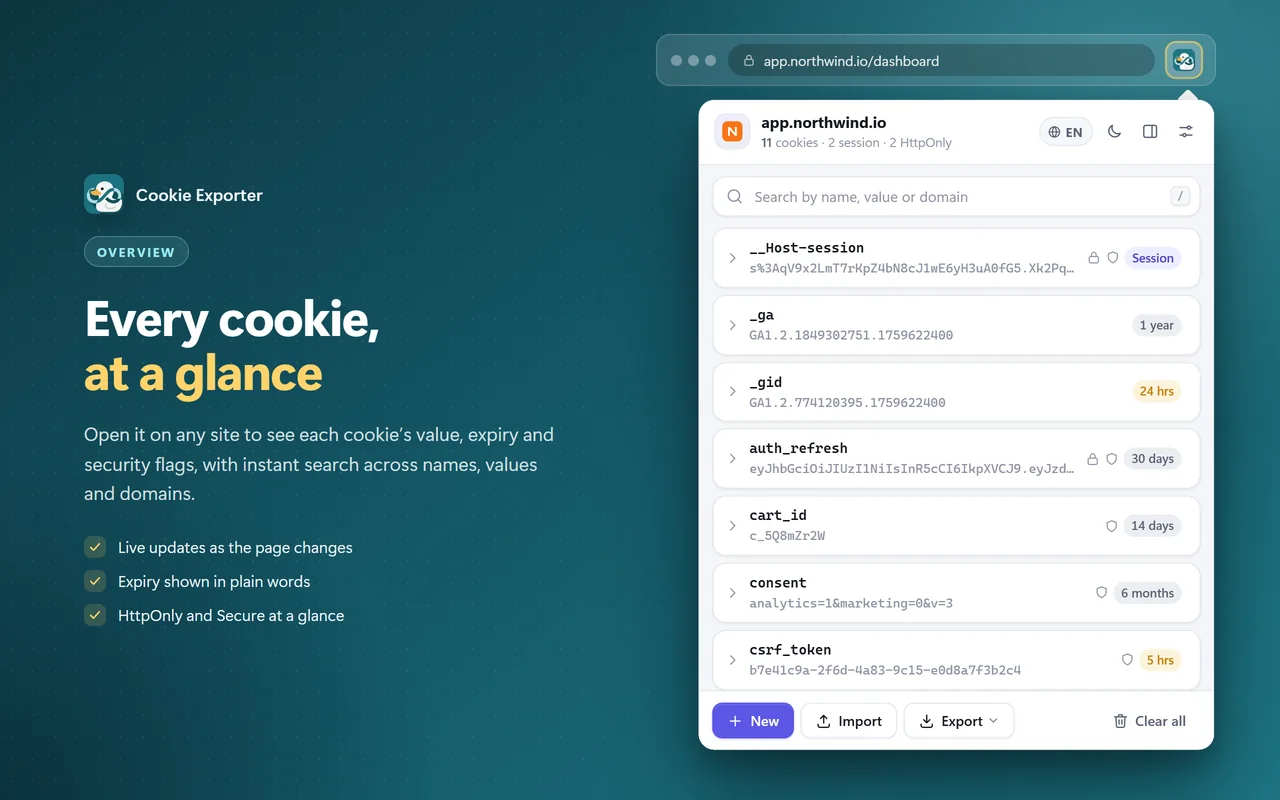
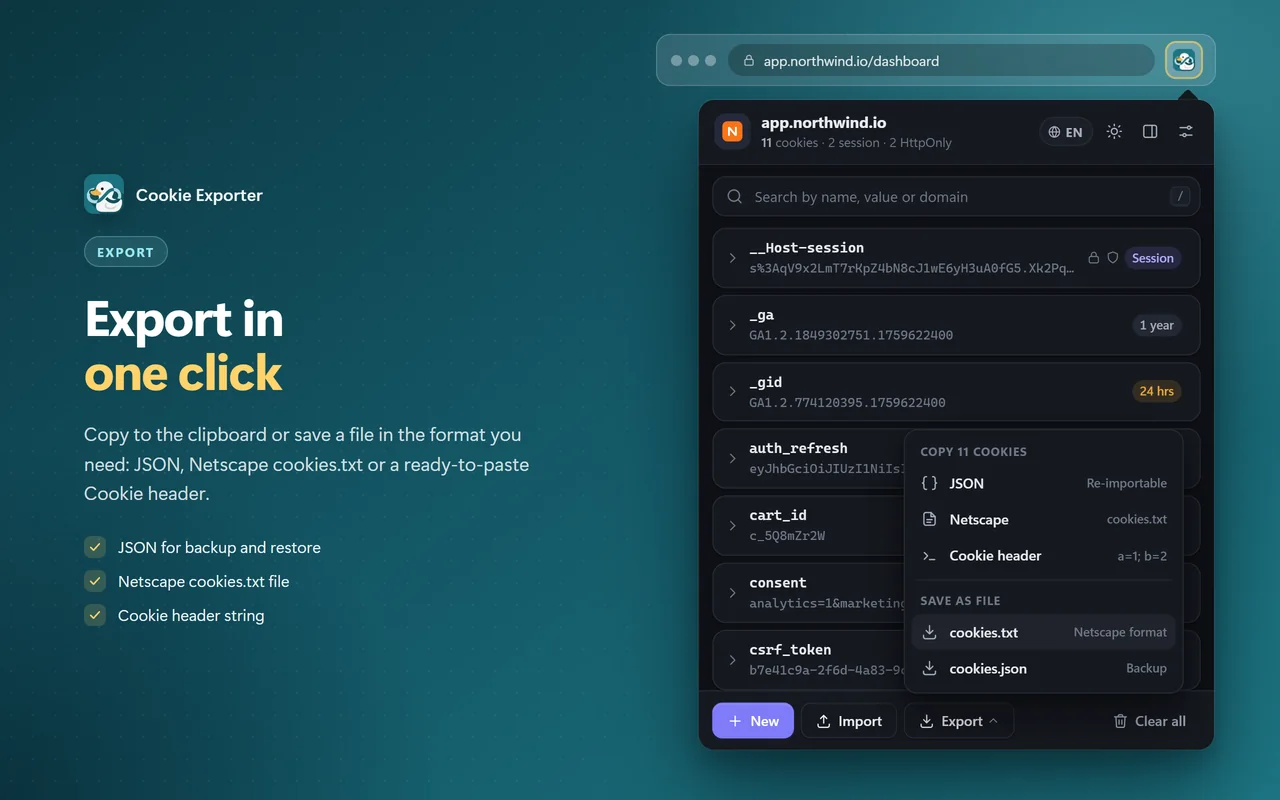
View, edit, import and export the cookies of the site you are on, right from the toolbar - JSON, cookies.txt or Cookie header.
Free · no account · no ads · cookies never leave your browser
Three steps, right on the page you are viewing
-
01
Open the site, click the icon
Go to the website and click the Cookie Exporter icon in the toolbar (or open it in the side panel, or the Cookie tab in DevTools).
-
02
Allow cookie access
The first time on a site, click Allow this site or Allow all sites. This access is optional and can be revoked in
chrome://extensions. -
03
View, edit, export or import
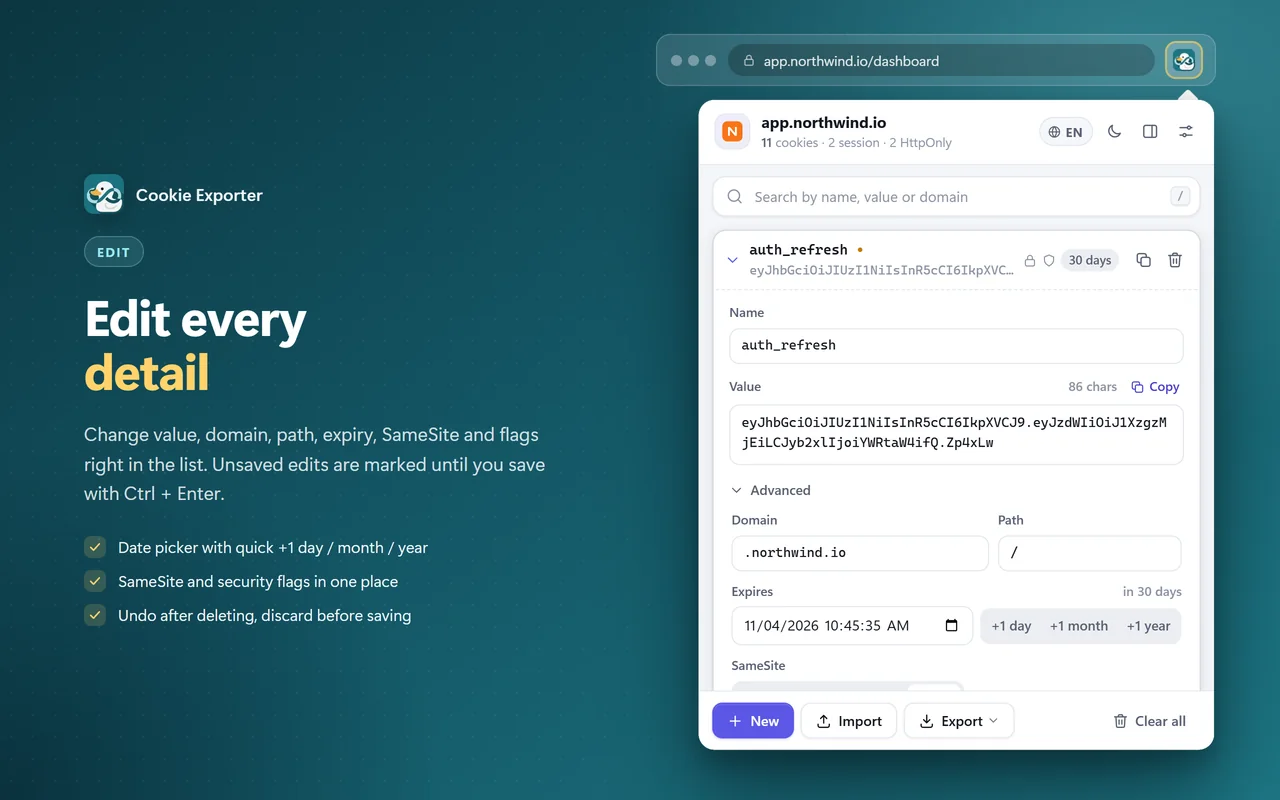
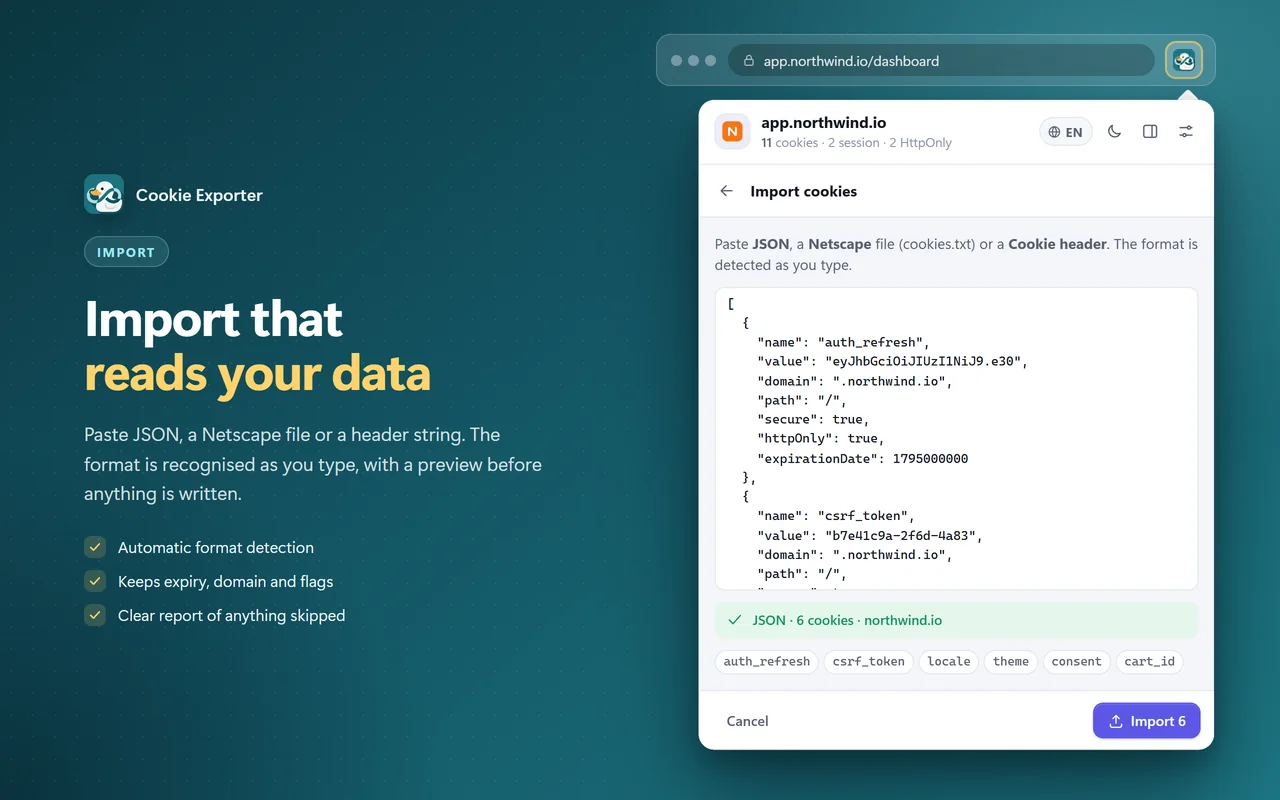
Search and edit cookies, then click Export to copy or save a file, or Import to paste cookies in.
- Formats
- JSON · Netscape cookies.txt · Cookie header
- Use it in
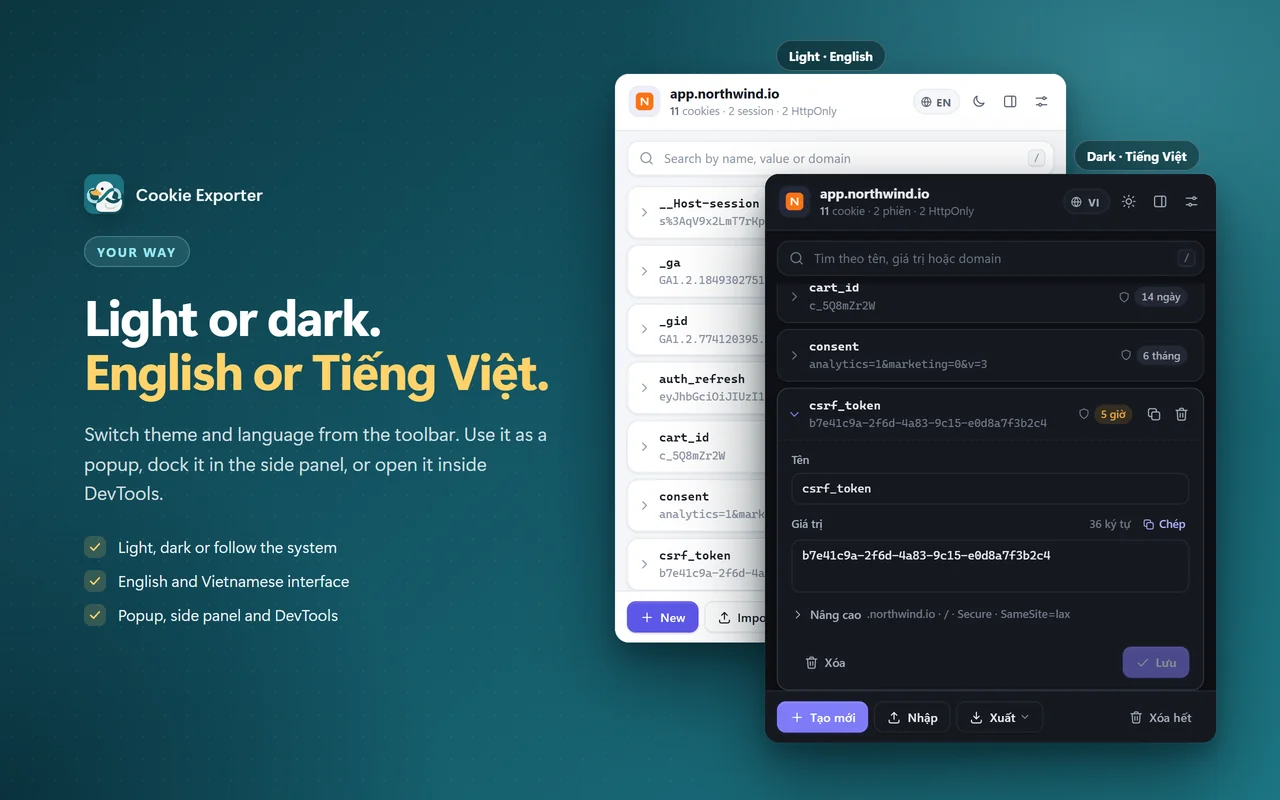
- Popup · side panel · a DevTools tab
- Your data
- Runs locally, nothing is sent anywhere
- Languages
- English · Tiếng Việt
Screenshots of the extension
The data shown is a sample site, not real cookies. Swipe through each part.
Free, from the Chrome Web Store
No account, no tracking, no analytics, no ads. The extension makes no network requests: cookies are only shown, copied to the clipboard or saved to a file when you ask. See our Privacy Policy.
- Access to a site's cookies is requested only when you allow it
- Only your interface preferences are stored, never cookie values
- All code ships inside the package; nothing is loaded remotely
Requirements & details
What to know before you install.
- Browser
- Google Chrome
- Required permissions
cookies- read and edit cookies;tabs- know which site is open so the right cookies are shown;storage- remember your preferences (theme, language…);sidePanel- open in the side panel- Optional permission
- Site access (
<all_urls>): not granted at install, requested only when you choose "Allow this site" or "Allow all sites" - Languages
- English · Tiếng Việt
- Updates
- Automatic via the Chrome Web Store
Frequently asked questions
Is it free?
Yes. Free, no ads, no account needed.
Why does it ask for site access?
Chrome only lets an extension read a site's cookies when it has access to that site. Access is not granted at install: you choose the current site only or all sites, and can revoke it at any time in chrome://extensions.
Are my cookies sent to a server?
No. The extension makes no network requests; its storage only holds your interface preferences, not cookie values.
Which formats are supported?
JSON (backup / restore, re-importable), Netscape cookies.txt (including #HttpOnly_ lines) and Cookie header strings (a=1; b=2). An imported Cookie header is added to the site you have open.
Can I export every cookie in the browser?
Yes, in Settings → Entire browser: copy as JSON or download cookies.txt. This requires "Allow all sites" access.
Is an exported file safe to share?
No. Cookies hold sign-in sessions - anyone with the file may get into your accounts, so keep exported files private.
What if I delete something by mistake?
After deleting a cookie or clearing a site, the notification has an Undo button to restore them. "Delete all cookies" for the whole browser in Settings cannot be undone.
Why do some pages show no cookies?
Built-in browser pages such as chrome:// and the Chrome Web Store don't expose cookies to extensions.
Still have a question? Contact support