
Mouse Synchronization
Control many windows at once with a single mouse - act in the leader window and the others do exactly the same.
Free · no install, just unzip and run · no account
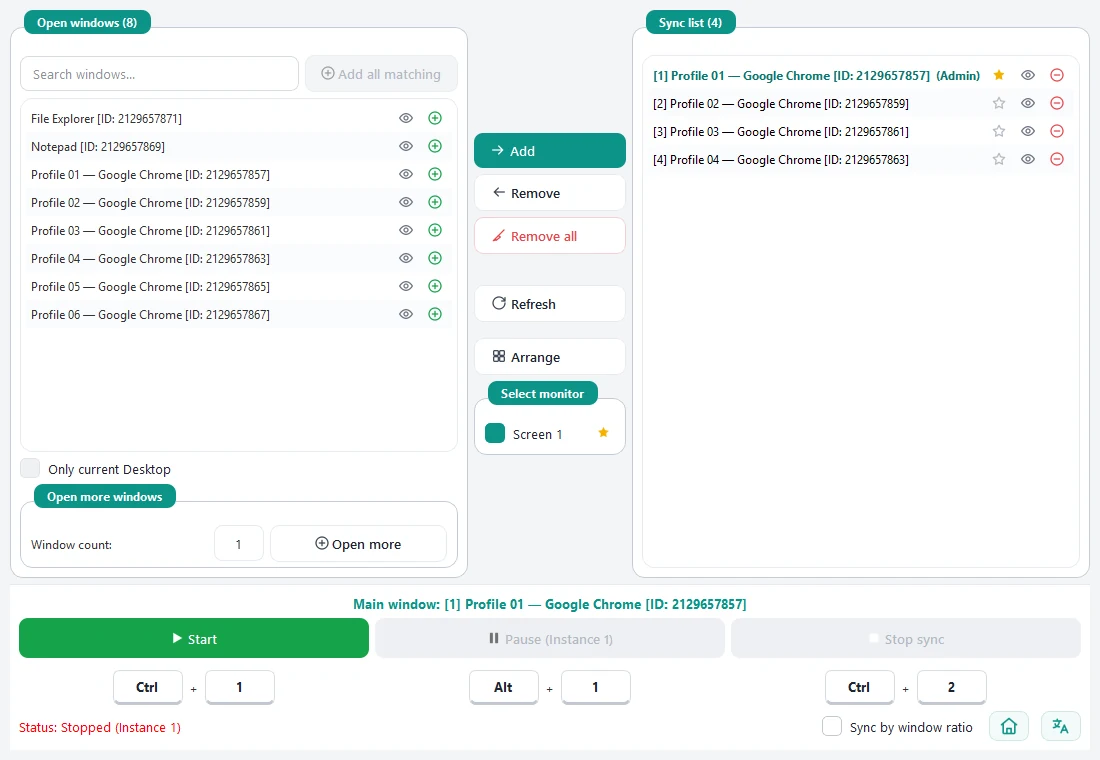
Three steps, no setup
-
01
Add windows to the list
Open the windows you want to control, then click ➕ in the Open windows panel to move them to the Sync list (at least 2 windows).
-
02
Pick the leader
Click the star ☆ next to the window you want to control from - it turns gold ★. Then click Start or press Ctrl + 1.
-
03
Do it once
Click, scroll or drag inside the leader window - every other window in the list does the same at the same moment. Stop with Ctrl + 2.
- Syncs
- Left / right / middle click, scroll, click-and-drag
- Operating system
- Windows
- Hotkeys
- Ctrl+1 start · Ctrl+2 stop · Alt+1 pause
- Languages
- 9 languages, including English and Tiếng Việt
Features
One mouse, many windows
Left, right and middle clicks, scrolling and click-and-drag inside the leader window are sent at the same time to every window in the Sync list. Only one window can be the leader.
Sync by window ratio
Turn it on when windows differ in size or position: actions are matched by relative position instead of exact coordinates. Leave it off when all windows are the same size and lined up.
Find and add windows fast
The Open windows panel lists every window live, with a search box, an Add all matching button to add a whole batch at once, an option to show only the current virtual desktop, and a 👁 button to bring a window to the front.
Arrange into a grid
Tick monitors under Select monitor and click Arrange: the app tidies your sync windows into an even grid on those screens. The main-screen star is just a label inside the app - it does not change your Windows settings.
Open more windows
Select a window, set how many copies (1-20) and click Open more: the app finds the program behind that window and launches extra copies. Programs that allow only one copy will close the extras themselves.
Custom hotkeys
Start Ctrl + 1, Stop Ctrl + 2, Pause / Resume Alt + 1. Change them by typing keys into the shortcut boxes (locked while syncing); they are remembered next time you open the app.
Floating status badge
While syncing, a small badge sits in the corner of the screen: green means running, amber means paused. Click it to pause or resume - handy when other windows cover the app.
Run several copies of the tool
Open Mouse Synchronization more than once; each copy gets its own number and its own Pause hotkey (Alt + its number). Windows in the list get [1], [2]… added to their titles so you can tell them apart; original names come back when you remove them or close the app.
Free - download and go
No account, no activation key, no ads. The app sends nothing anywhere: mouse actions are passed straight to windows on your own computer, and only your language and hotkeys are saved.
- Download the .zip, unzip and run - no installer
- Switch between 9 languages instantly, no restart
- No administrator rights needed for normal windows
Requirements & details
What to know before you install.
- Operating system
- Windows (no macOS version)
- Installation
- None - unzip the .zip file and run
Mouse Synchronization.exe - Administrator rights
- Not required. Only if a window you want to control runs as administrator must you start the app with Run as administrator too.
- Saved data
- Language and hotkeys in
%APPDATA%\Mouse Synchronization\settings.ini - Languages
- English, Tiếng Việt, বাংলা, हिन्दी, Português (Brasil), Русский, Türkçe, اردو, 简体中文
Frequently asked questions
Is it free?
Yes. Free, no account or activation key.
Nothing happens when I press Start?
Pick a leader window (gold star ★) and add at least 2 windows to the Sync list.
A window I want isn't in the list?
Click Refresh. If the window is on another virtual desktop, untick "Only current Desktop".
The other windows don't react when I click?
You must act inside the leader window while syncing is running (green badge). If a target window runs as administrator, start the app with Run as administrator.
What if my windows are different sizes?
Turn on "Sync by window ratio", or use Arrange to tidy them into an even grid.
Does it sync the keyboard?
No. It only repeats mouse actions: clicks, scrolling and click-and-drag.
Why do window titles show [1], [2]?
The app numbers them so you can tell them apart; the original titles come back when you remove a window from the list or close the app.
Is there a macOS version?
No, the app runs on Windows only.
Still have a question? Contact support