 ChatGPT Image AutoChrome extension
Bulk image generation with ChatGPT
Paste a prompt list and press Run - the extension creates each image on ChatGPT and downloads it for you.
Free Basic plan, 10 images per 24 hours · runs on your own ChatGPT account
Three steps, right inside your browser
-
01
Install & open the control window
Add ChatGPT Image Auto from the Chrome Web Store and click its toolbar icon - it opens its own control window.
-
02
Sign in
Sign in with Google to load your plan, and sign in to ChatGPT with your own account. Click the status chip at the top to open ChatGPT.
-
03
Paste prompts & press Run
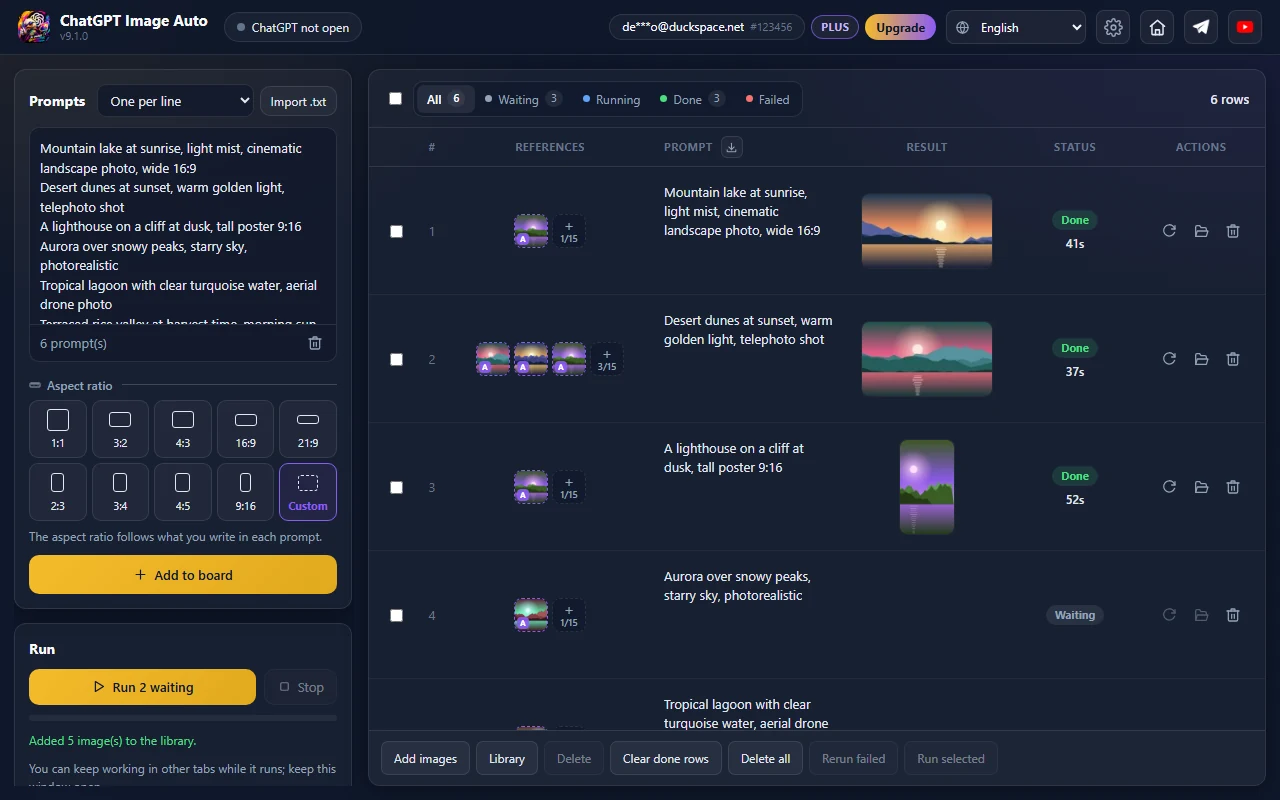
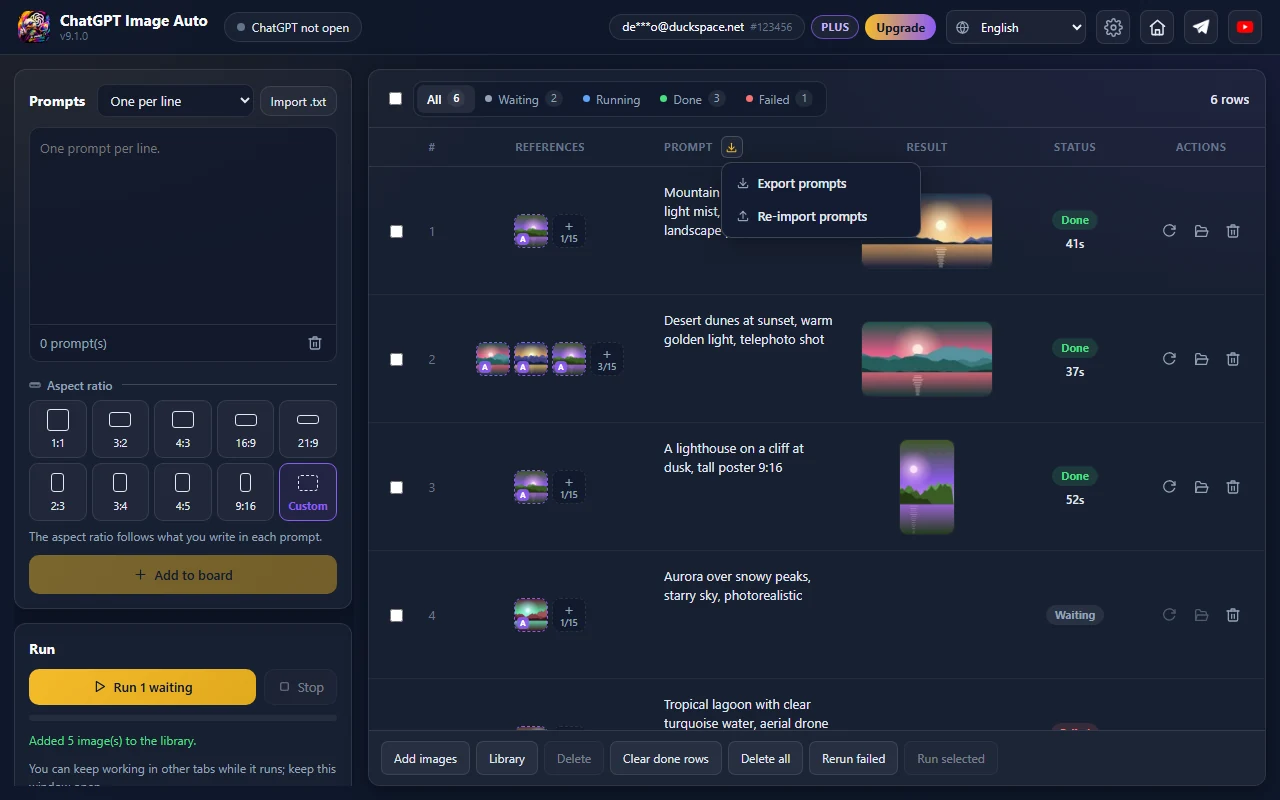
Paste or import a .txt, pick an aspect ratio, click Add to board, then Run. Finished images download to your Downloads folder automatically.
- Works with
- ChatGPT Images (chatgpt.com/images)
- Platform
- Google Chrome extension
- Results
- Your Downloads folder, in a subfolder you choose
- License
- 1 / 6 / 12 months, one account for every app
Features
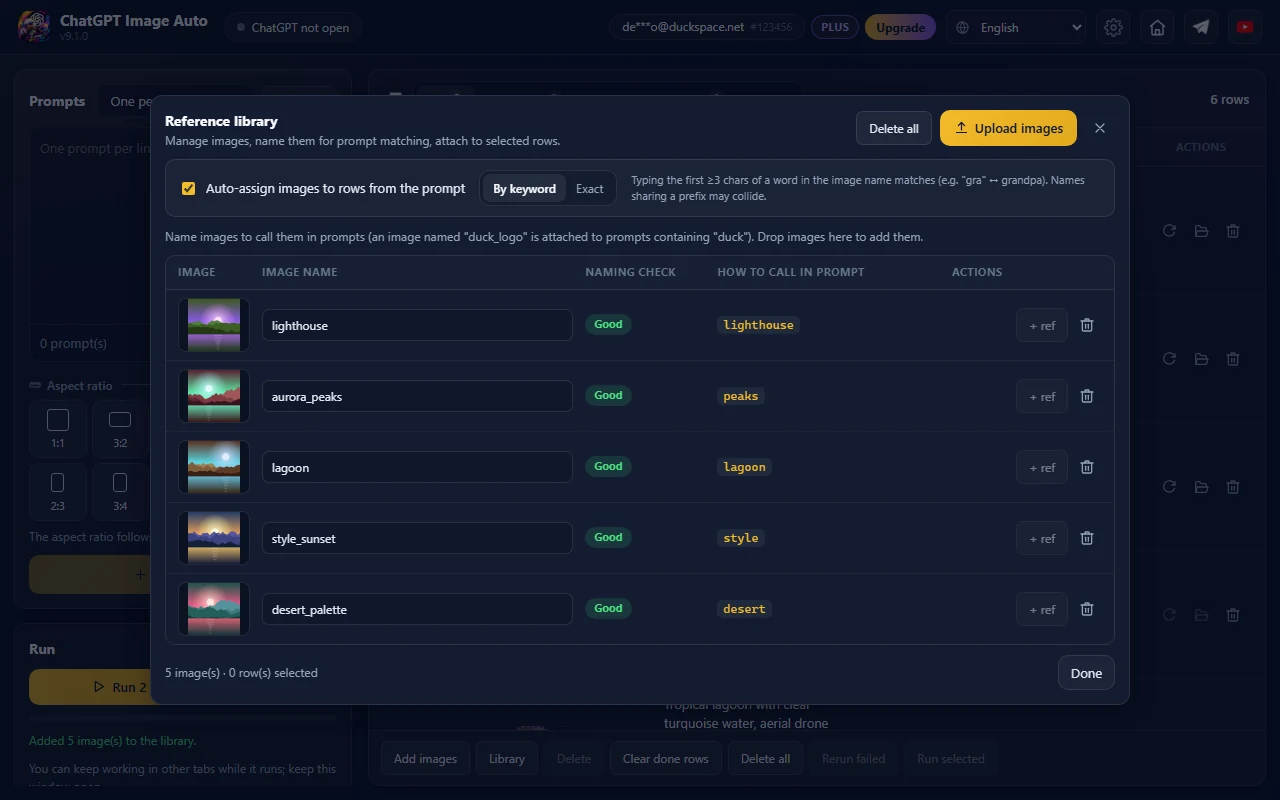
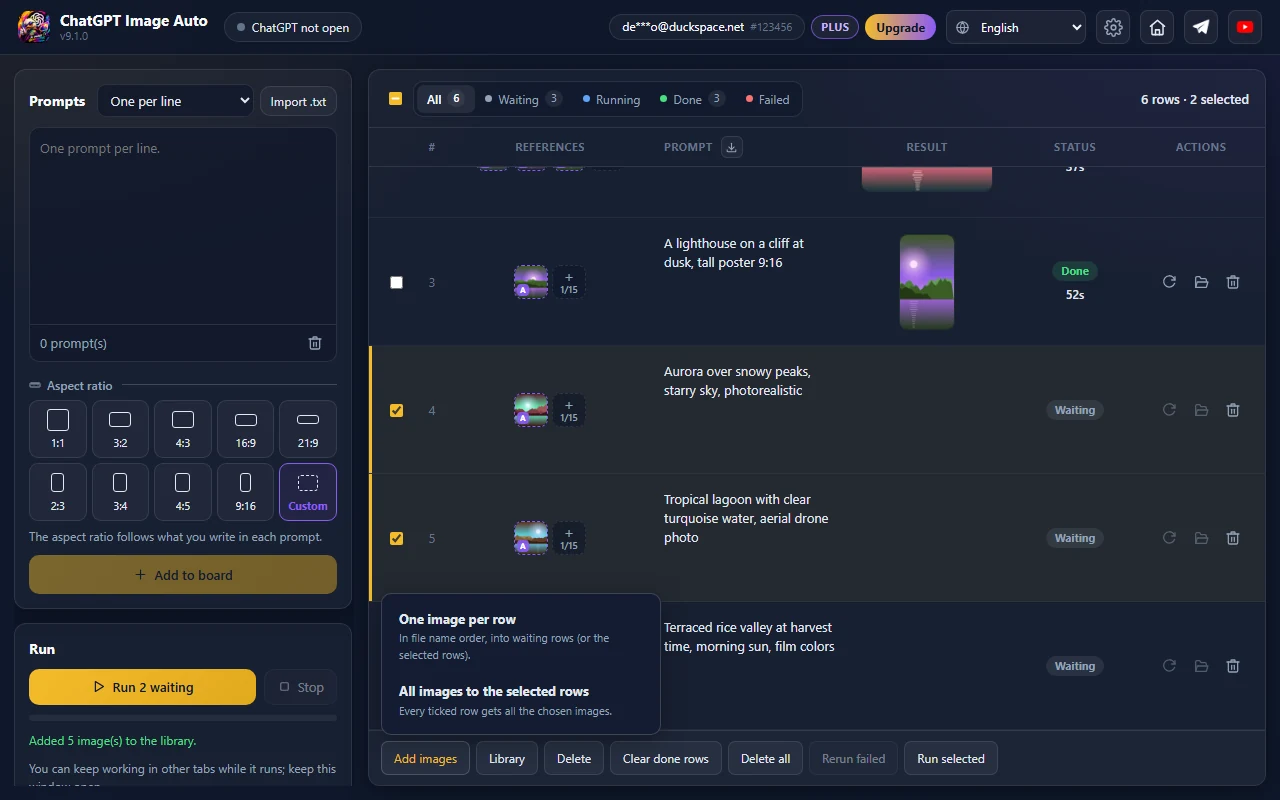
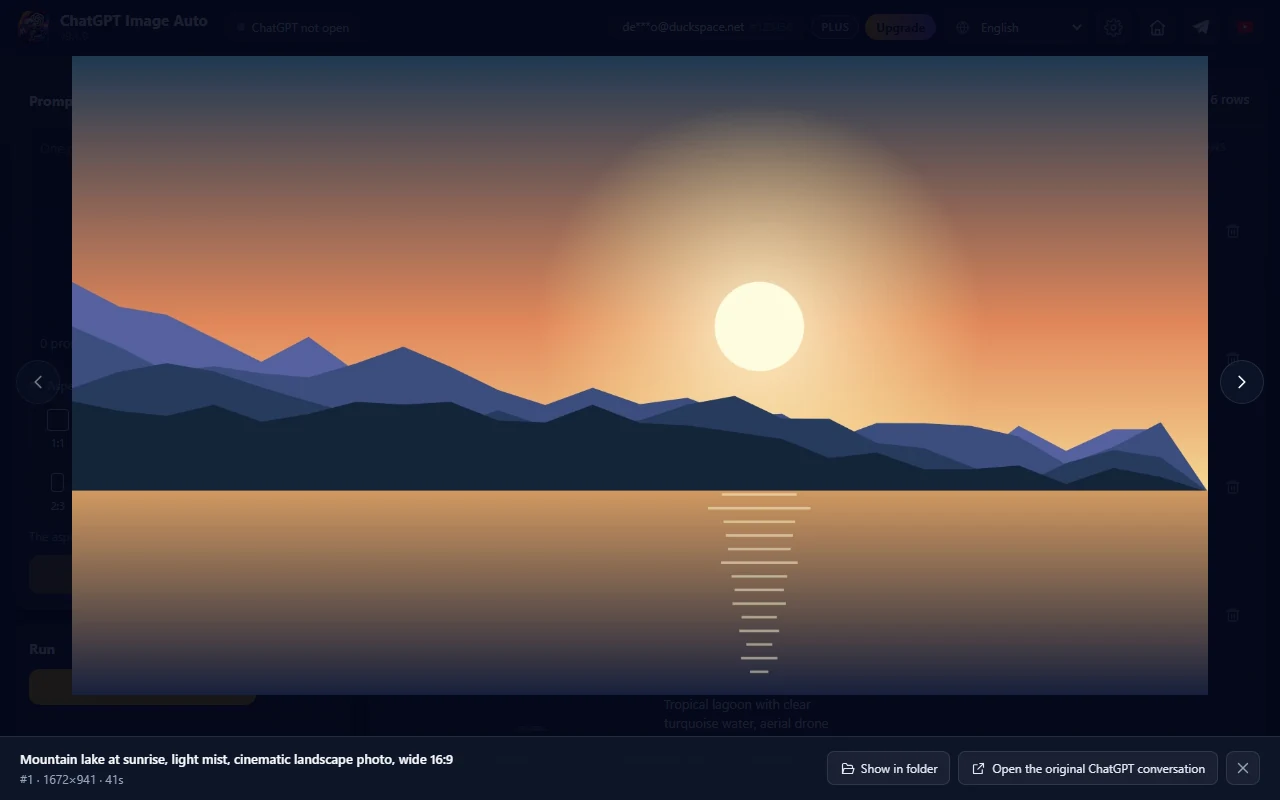
One control window: prompts on the left, the work board on the right, and a shared reference library.
Pricing
Plans pay for the automation tool only - images are still made by your own ChatGPT account, so how many you can create is up to ChatGPT for that account. No auto-renewal.
Basic
Try it before you buy.
Just sign in with Google
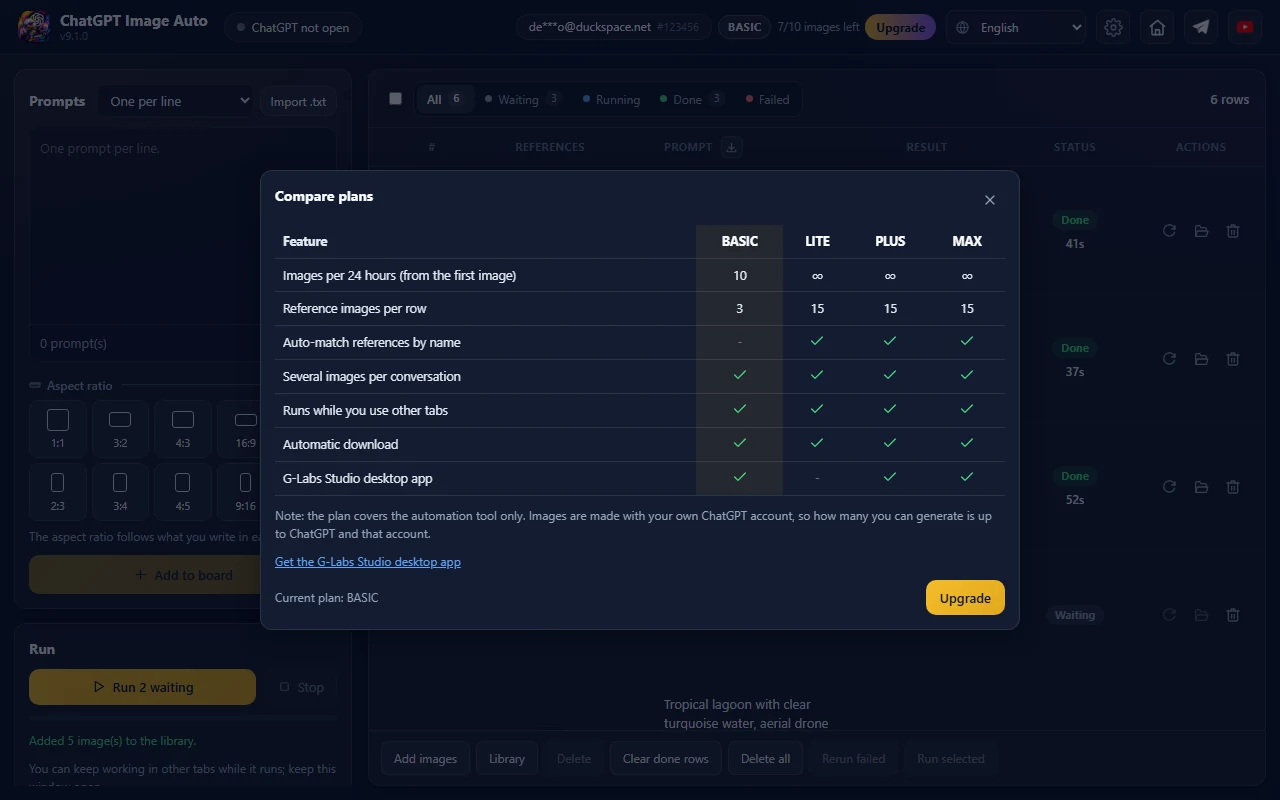
Add to Chrome- 10 images per 24 hours, from the first image
- 3 reference images per row
- Several images per conversation
- Automatic download
Lite
Removes the extension’s limits.
- Unlimited images per 24 hours
- 15 reference images per row
- Auto-match references by name
- Covers the ChatGPT Image Auto, Auto Flow and Auto Vibes extensions
- Does not include the G-Labs Studio desktop app
Plus
Adds the G-Labs Studio desktop app.
- Everything in Lite
- Also the G-Labs Studio desktop app
Max
Adds webhooks to G-Labs Studio.
- Everything in Plus
- G-Labs Studio with webhooks and unlimited threads
Pay by PayPal, USDT/Binance, or VietQR bank transfer (Vietnamese banks only). 6 months cost the same as 5, a year the same as 10. Upgrading mid-term only charges the difference for the days left. Refund policy.
Requirements & details
What to know before you install.
- Requires
- Google Chrome
- Accounts
- A ChatGPT account that can create images + Google sign-in to load your plan
- Permissions
- Storage, downloads, tabs, scripting, Google sign-in; only accesses chatgpt.com, the license server and googleapis.com (to read your email)
- Languages
- 11 languages, including English and Vietnamese
- Version
- See the latest version on the Chrome Web Store · Chrome updates it automatically
Frequently asked questions
Can I use it for free?
Yes - the Basic plan: 10 images per 24 hours (counted by the server from your first image) and 3 reference images per row. Lite, Plus and Max remove the image limit and allow 15 reference images per row.
What happens after 10 Basic images?
The remaining rows stay waiting. The extension shows when new images become available; then press Run again, or upgrade to run without a limit.
Does a plan mean unlimited generation?
A plan only removes the extension’s limits. Images are made by your own ChatGPT account, so how many you can create is still up to ChatGPT for that account.
Does the extension generate images itself?
No. ChatGPT Image Auto runs no AI models; it sends your prompts to ChatGPT through your own signed-in session, just as if you did it by hand. It never collects passwords.
Can I use my computer while it runs?
Yes. Work in other tabs as usual; just keep the control window open. Reopen the window and unfinished rows resume.
Where are results saved?
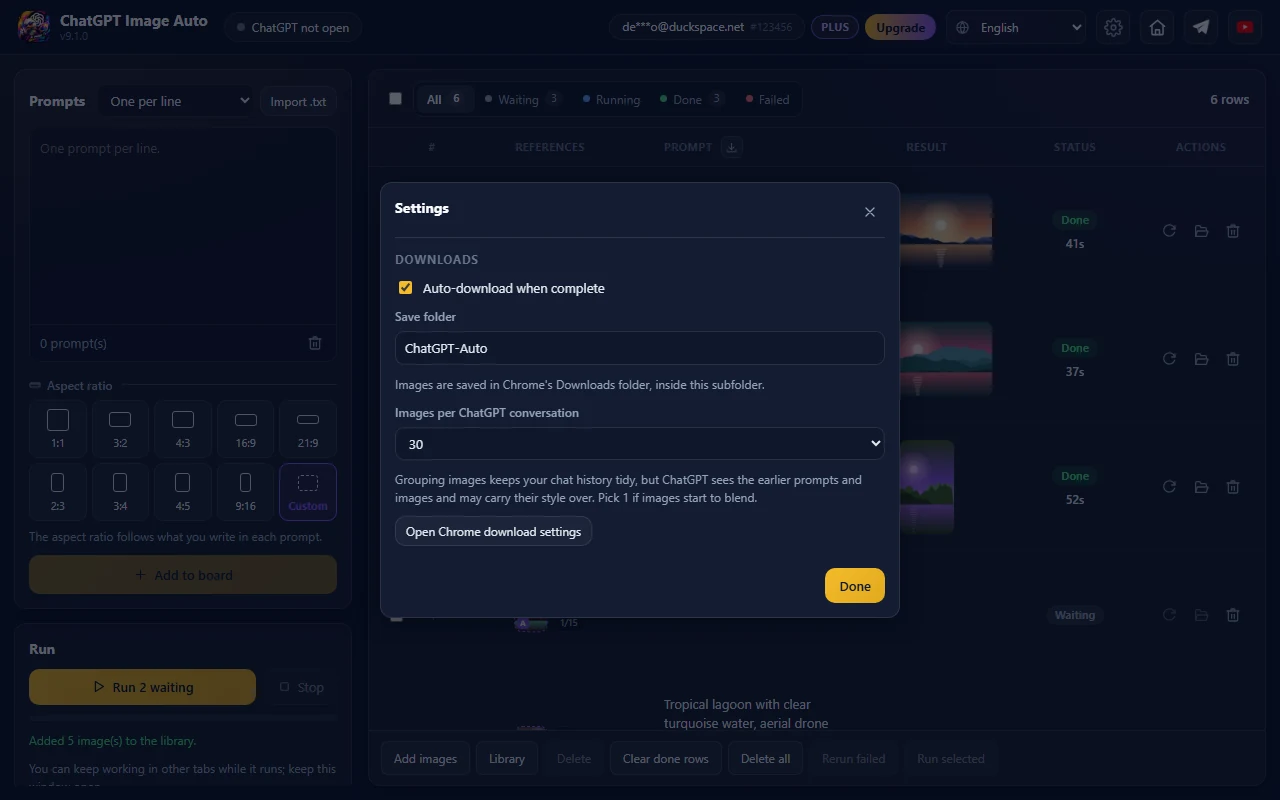
In Chrome’s Downloads folder, inside the subfolder you set in Settings (ChatGPT-Auto by default). File names follow the style you pick in Settings → File naming (by default: row number, prompt). Click the folder icon on a row to open the file.
Are styles blending between prompts?
Open Settings and choose 1 image per conversation. Grouping images in one conversation keeps your chat history tidy, but ChatGPT sees the earlier images.
How is it different from G-Labs Studio?
ChatGPT Image Auto works with ChatGPT in your browser only. G-Labs Studio (included in Plus/Max) is a desktop app that works with many image and video platforms.
Where does my data go?
Prompts, images, the library and settings stay in your browser and go straight to ChatGPT. The license server only receives your Google email and sign-in details to load your plan, plus how many Basic images you used. See the Privacy Policy.
How do I pay?
Inside the extension (click Upgrade): PayPal for international payments, USDT/Binance, or VietQR for Vietnamese banks. The plan activates on the Google account you signed in with; press Refresh status after 1-3 minutes.
What happens when my plan ends?
Plans never auto-renew. When one ends the extension returns to Basic; your data in the browser stays as it is.
Can I get a refund?
Yes, within the first 24 hours after payment - try the free Basic plan first. Details in the Refund Policy.
Still have a question? Contact support