 G-Labs Story MachineDesktop app · Windows & macOS
From an idea to a finished video
Turn a topic, a script or a subtitle file into a documentary-style video - one page per step, so you review and fix things by hand before moving on.
Included with the G-Labs Studio Max plan · not sold separately · All releases
Three steps from idea to video
-
01
Sign in & connect your tools
Sign in with Google using the account that has the G-Labs Studio Max plan. In Settings, pick an LLM provider, then paste the webhook address and key for G-Labs Studio (images, video) and for Voiceover or Voice Studio (narration).
-
02
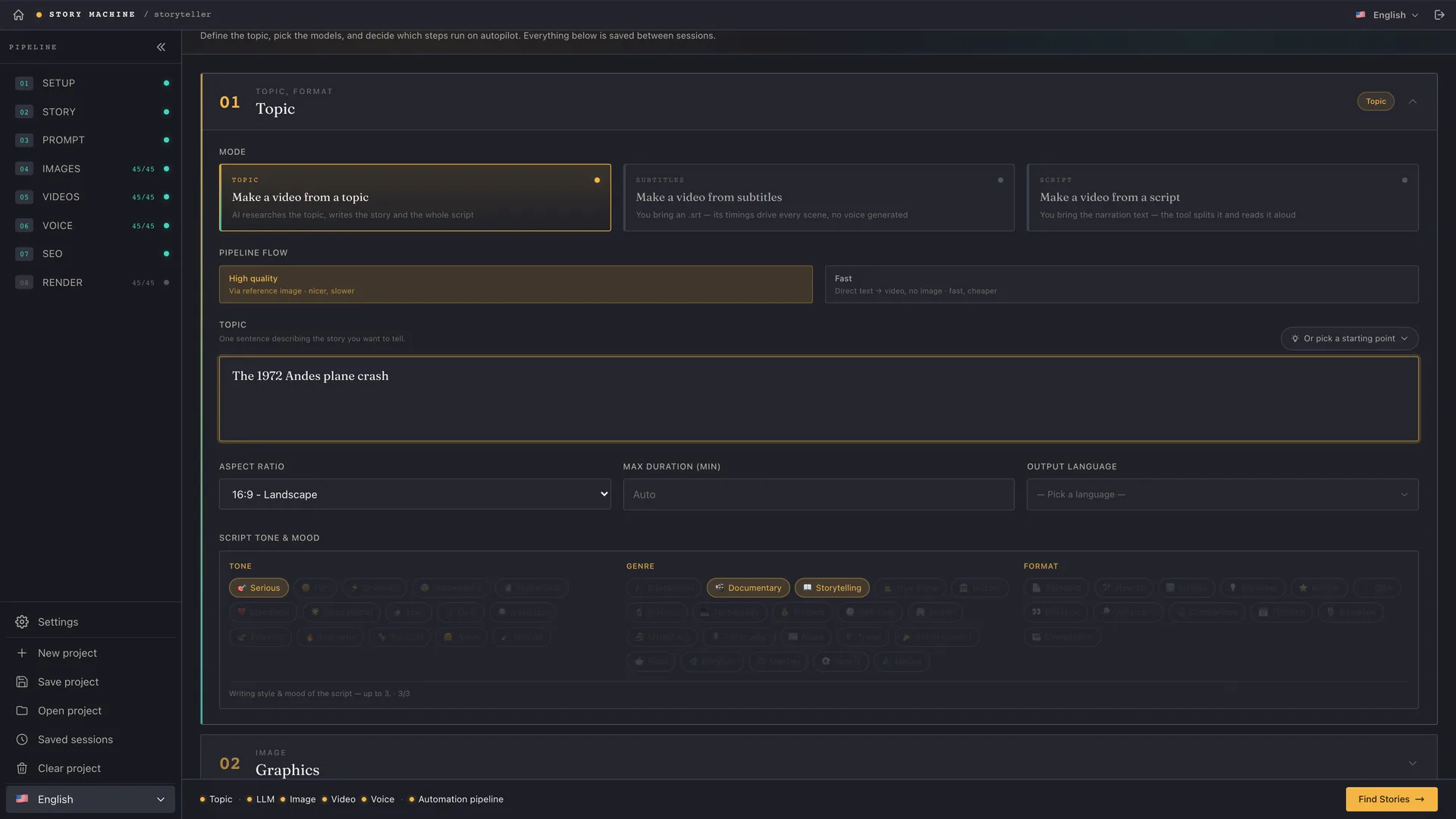
Set the brief
Enter a topic for the AI to research, paste a script or load an
.srtfile. Choose the aspect ratio, length, output language, tone and image style. -
03
Review each page, then render
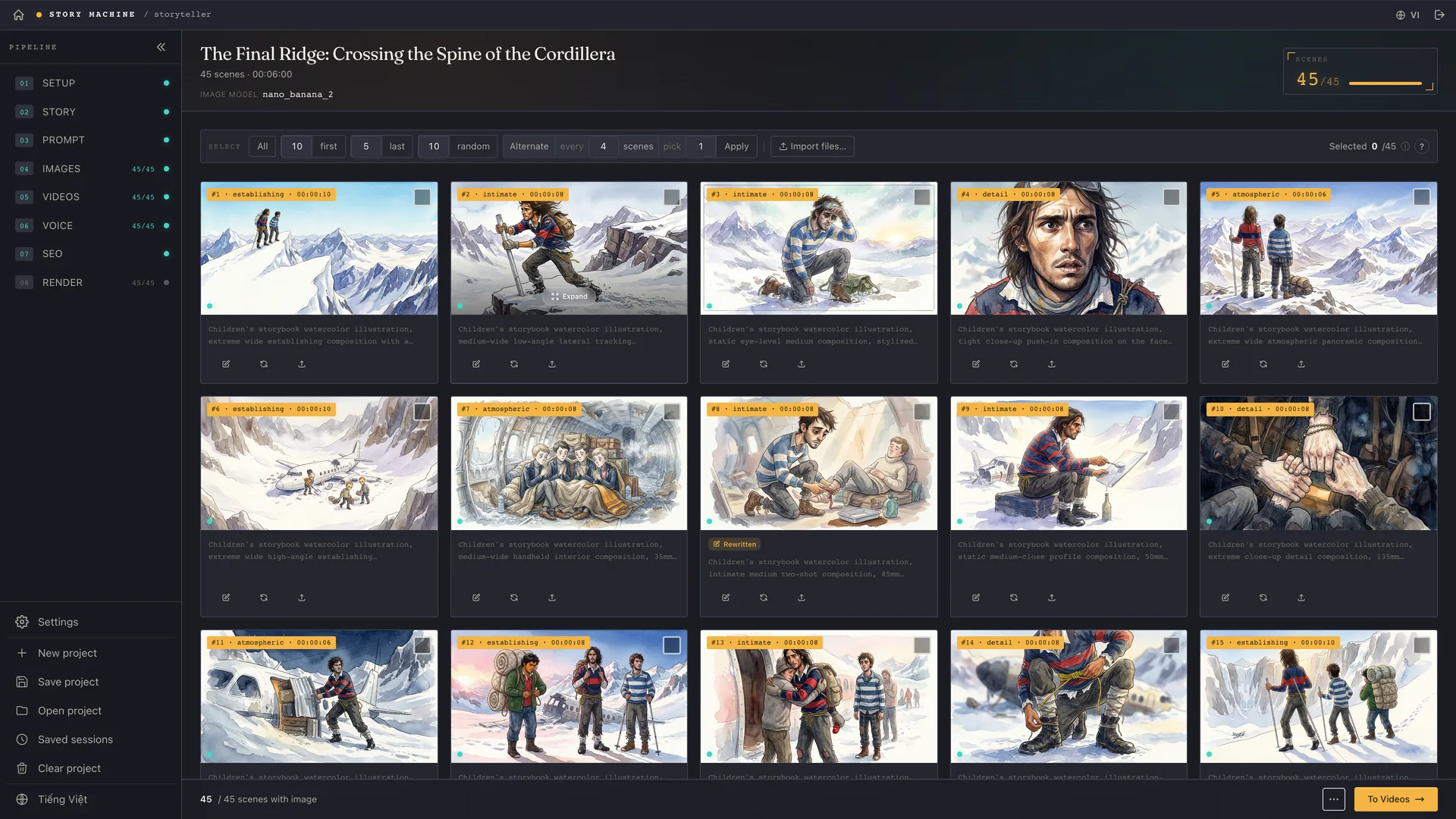
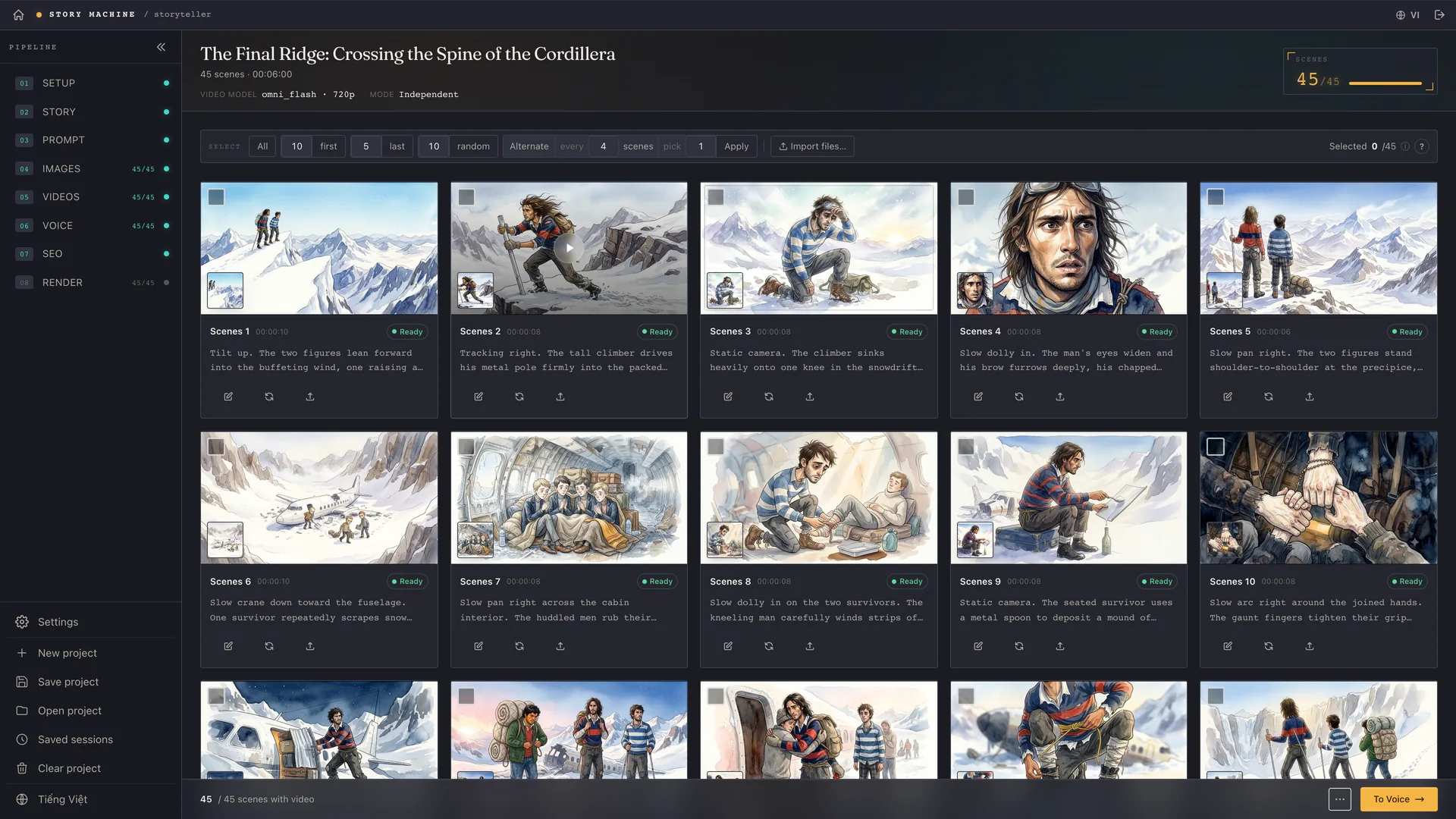
Story → Analysis → Images → Videos → Voice → SEO → Render. On every page you can edit, regenerate or drop in your own files before moving to the next step.
- Input
- Topic · script ·
.srtsubtitles · storyboard - Operating system
- Windows 10/11 · macOS (Apple Silicon & Intel)
- Output
- MP4 (video or slideshow) · CapCut draft
- Access
- An active G-Labs Studio Max plan
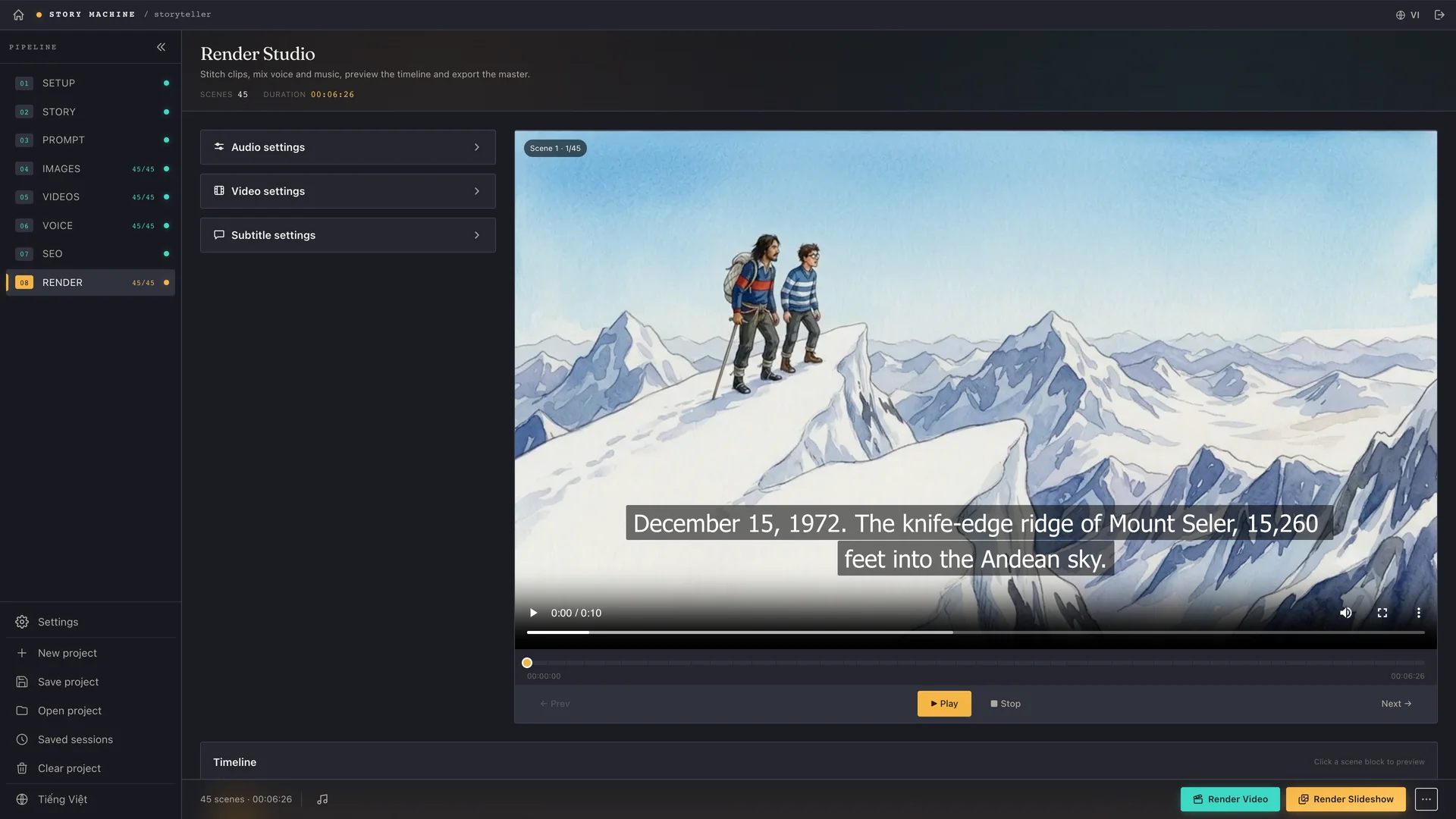
Screenshots from the running app
No mockups - taken from a real project, "The Final Ridge". Swipe through the steps of the pipeline.
Included with the G-Labs Studio Max plan
Story Machine is not sold on its own. It only opens for an account on an active G-Labs Studio Max plan - the license server checks the plan every time you sign in. You can buy Max inside G-Labs Studio, or buy the Max plan of the Auto Flow / Auto Vibes extensions (which includes G-Labs Studio Max).
 G-Labs Studio
 Auto Flow
 Auto Vibes
- Sign in with Google using your own account
- Max also unlocks the G-Labs Studio Webhook API - the channel Story Machine uses for images and video
- The Editor section and the wildlife documentary approach are unlocked separately per account
- When Max expires the app locks; your projects stay on your computer
Requirements & details
What to know before you install.
- Operating system
- Windows 10/11 64-bit · macOS Apple Silicon (macOS 12+) · macOS Intel
- You need
- An LLM provider of your own: Claude CLI, Antigravity CLI, Codex CLI, 9Router, or an API key for DeepSeek, Gemini, OpenRouter, Groq, Qwen, Kimi or Mistral
- Images, video & voice
- G-Labs Studio running (webhook) for images/video; G-Labs Voiceover or G-Labs Voice Studio for narration
- Network
- Internet to sign in and receive the prompt set; the app must re-check your plan at least every 72 hours
- Bundled
- FFmpeg - nothing extra to install
- Languages
- 11 interface languages, including English and Vietnamese
- Version
- See the latest release on GitHub · the app updates itself
- Install note
- The app is not code-signed yet: on Windows click More info → Run anyway; on macOS right-click → Open the first time.
Frequently asked questions
How do I get Story Machine?
Buy a G-Labs Studio Max plan (in G-Labs Studio or the Auto Flow / Auto Vibes extensions), download the app and sign in with the same Google account. It is not sold separately and has no trial.
Does the app generate images, video and voice itself?
No. Story Machine orchestrates: it writes and plans with the LLM you choose, sends image/video jobs to G-Labs Studio and narration to Voiceover or Voice Studio over webhooks (on your own computer by default). The limits of the service accounts you use in G-Labs Studio still apply.
Which LLM do I need?
One of Claude CLI, Antigravity CLI, Codex CLI (signed in on your computer), 9Router, or an API key for DeepSeek, Gemini, OpenRouter, Groq, Qwen, Kimi or Mistral - set it up in Settings after signing in.
What if I already have a script or subtitles?
Choose "Make a video from a script" and the app splits and voices it, or "Make a video from subtitles" so the .srt timings drive every scene. You can also translate or edit the script/subtitles with the LLM and switch between the original and the translation.
What if I don’t want video for every scene?
Use Render Slideshow from the images with pan/zoom effects, or choose Fast mode to go straight from text to video. The render room mixes scenes that have video with scenes that only have a still.
Can I export to CapCut?
Yes - Export to CapCut on the Render page builds a CapCut draft from your scenes so you can finish by hand.
What does the SEO page do?
It suggests a title, description, tags and thumbnail ideas for publishing on YouTube.
Where does my data go?
Projects, images, videos and renders are saved on your computer (in your Documents folder by default). Story content goes to the LLM provider you choose. The license server is only used to sign in, check your plan and deliver the prompt set - the app keeps those prompts in memory and never writes them to disk. See the Privacy Policy.
Do I need to install FFmpeg?
No, FFmpeg is bundled in both the Windows and macOS builds.
Can I get a refund?
Story Machine comes with the Max plan, so refunds apply to that plan: within the first 24 hours after payment. Details in the Refund Policy and Terms.
Still have a question? Contact support · User guide